Table of Contents (12 sections)
📋 Table of Contents
- Introduction
- Step 1: Evaluate Your Current Smartphone Usage
- Step 2: Organize Your Apps
- Step 3: Enhance Notifications Management
- Step 4: Utilize Productivity Apps
- Step 5: Optimize Settings for Battery Efficiency
- FAQs
- Glossary
- Checklist Before Optimization
Introduction
In today’s fast-paced world, optimizing your smartphone for productivity is essential. Our smartphones are no longer just communication devices; they are powerful tools that can enhance productivity if used correctly. By streamlining your smartphone's features, you can maximize efficiency and ensure that your device works for you rather than against you.
Step 1: Evaluate Your Current Smartphone Usage
Before diving into the optimizations, it's crucial to assess how you are currently using your smartphone. This analysis helps identify bottlenecks and areas for improvement. Start by reviewing your app usage statistics often found in your device settings under 'Digital Wellbeing' or 'Usage.' Here, you can see how much time you spend on various applications such as social media, browsing, or gaming. According to Statista, the average user spends about 3 hours and 15 minutes on their smartphones daily.
Identify the apps that consume most of your time. Are they contributing to your productivity, or are they distractions? This self-assessment is foundational before you make adjustments. Keeping a log of your daily tasks and how you engage with your smartphone can provide insights into which functionalities you rely on most.
Step 2: Organize Your Apps
Once you understand your usage patterns, it's time to organize your apps effectively. Start by categorizing your apps into folders based on their functionality, such as productivity, entertainment, social media, and utilities. This organization minimizes time spent searching for applications, allowing you to access them easily.
For instance, put all your productivity apps together — task managers, note-taking apps, and calendars — easily reachable on your home screen. Additionally, consider removing unnecessary apps that you hardly use. According to a report from UFC-Que Choisir, decluttering your phone can significantly improve your focus and boost productivity by reducing cognitive load.
Step 3: Enhance Notifications Management
Notifications can be a significant source of distraction. To effectively optimize your smartphone for productivity, it is essential to manage these interruptions. Start by going into your settings and customizing your notification preferences. Turn off non-essential notifications and limit those from social media apps, games, or shopping platforms. According to Harvard Business Review, it can take up to 23 minutes to regain focus after an interruption.
You might also enable focus modes or ‘Do Not Disturb’ during critical work hours. These settings allow you to control when and how you receive alerts, minimizing distractions and streamlining your workflow. Remember, a quieter phone leads to a clearer mind.
Step 4: Utilize Productivity Apps
Equipping your smartphone with the right productivity apps can profoundly impact your daily efficiency. Apps that facilitate task management, note-taking, and time-tracking can enhance your ability to stay organized. Consider using a task management app that integrates with your calendar, allowing you to view all your obligations in one place. Dedicating a small amount of time daily to update and organize your task list keeps you on track.
Additionally, cloud storage solutions enable you to access files on-the-go, contributing to seamless transitions between work and home. Customized shortcuts for frequently used tools can also save precious seconds in completing tasks. We have selected several products adapted to improve your workflow, so be sure to check our recommendations below.
Step 5: Optimize Settings for Battery Efficiency
Nothing can derail productivity faster than a dead battery. Therefore, optimizing your smartphone settings to conserve battery life is crucial. Begin by enabling battery saver modes, which reduce performance and limit background activity for non-essential apps when your battery level is low.
You should also review which apps consume the most energy, accessible in your battery settings, and limit usage accordingly. Adjusting screen brightness automatically based on your environment or using dark mode can also lead to longer battery life. According to Les Numériques, adopting power-saving strategies can extend your smartphone's usage by up to 30%.
FAQs
Q: How can I remove distractions from my smartphone?
A: Consider using focus modes or app limits to restrict access to distracting applications during specific hours.
Q: What are some essential productivity apps I should consider?
A: Apps for task management, note-taking, and calendar syncing are pivotal for enhancing productivity.
Q: How can I know which apps are slowing down my productivity?
A: Review usage statistics in your settings to identify which apps take up most of your time and attention.
Q: Are there tools to help me track my productivity?
A: Yes, several productivity apps include tracking features that can analyze where you spend the most time.
Glossary
| Term | Definition |
|---|---|
| Productivity Apps | Applications designed to improve efficiency and organization in personal or work tasks. |
| Focus Mode | A smartphone setting that limits notifications and access to distracting apps to enhance concentration. |
| Battery Saver Mode | A feature that reduces power consumption by limiting background processes and adjusting display settings. |
Checklist Before Optimization
- [ ] Evaluate current app usage and identify bottlenecks.
- [ ] Organize apps into functional folders.
- [ ] Manage and reduce notifications actively.
- [ ] Install and configure essential productivity apps.
- [ ] Optimize battery settings for longevity.
📺 For further exploration:
Watch "How to Optimize Your Smartphone for Better Productivity" on YouTube. Search for: smartphone productivity tips 2026.
🧠 Quick Quiz: What’s the main benefit of organizing your smartphone’s apps?
- A) It makes your phone look nicer.
- B) It saves time when accessing apps.
- C) It uses more storage.
Answer: B — It saves time when accessing apps by minimizing the time spent searching.
📺 Pour aller plus loin : smartphone productivity tips 2026 sur YouTube
Recommended products
Selected by our experts

Productivity Kit - SSD - 16 Go - interne - pour VersaLink B400, B405
Darty FR
A productivity kit can significantly enhance your smartphone's functionality, making tasks easier and more efficient.
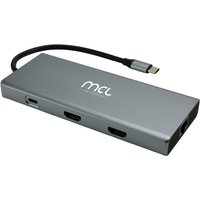
MCL 10-PORT DOCKING STATION HDMI station d'accueil Tablette/Smartphone/ordinateur portable Noir, Gris
Topbiz FR
A docking station enables you to connect multiple devices simultaneously, streamlining your workspace.

Etui Smartphone KITRIE Marron en cuir
3 Suisses FR
A protective smartphone case not only keeps your device safe but can also enhance its usability with practical features.